 Shopfluence Cart
All guides
Android TV · tried on a Mi TV 4A Pro
Same TV. No ads.
My Mi TV opened to sponsored rows and autoplay trailers. I switched off the bloat and gave it a calm Home screen without deleting anything. I did all of it with Claude, Anthropic's AI assistant. Here's what changed and how you can do it too.
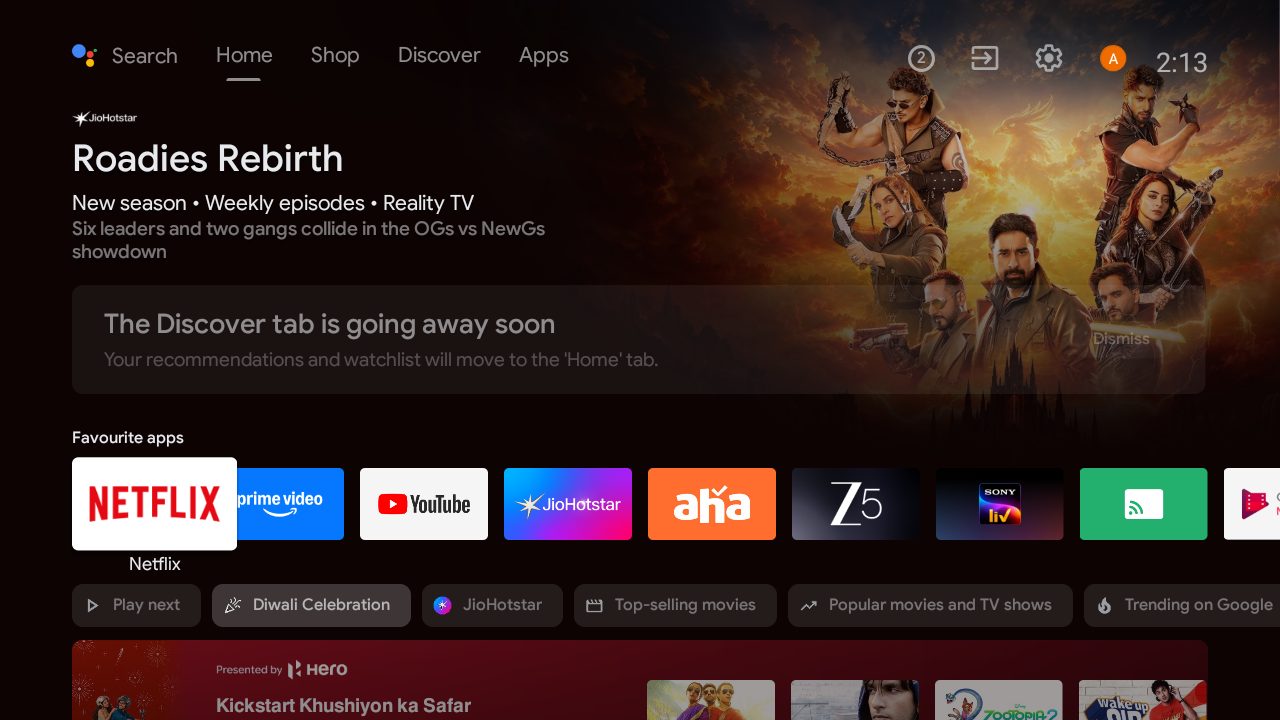
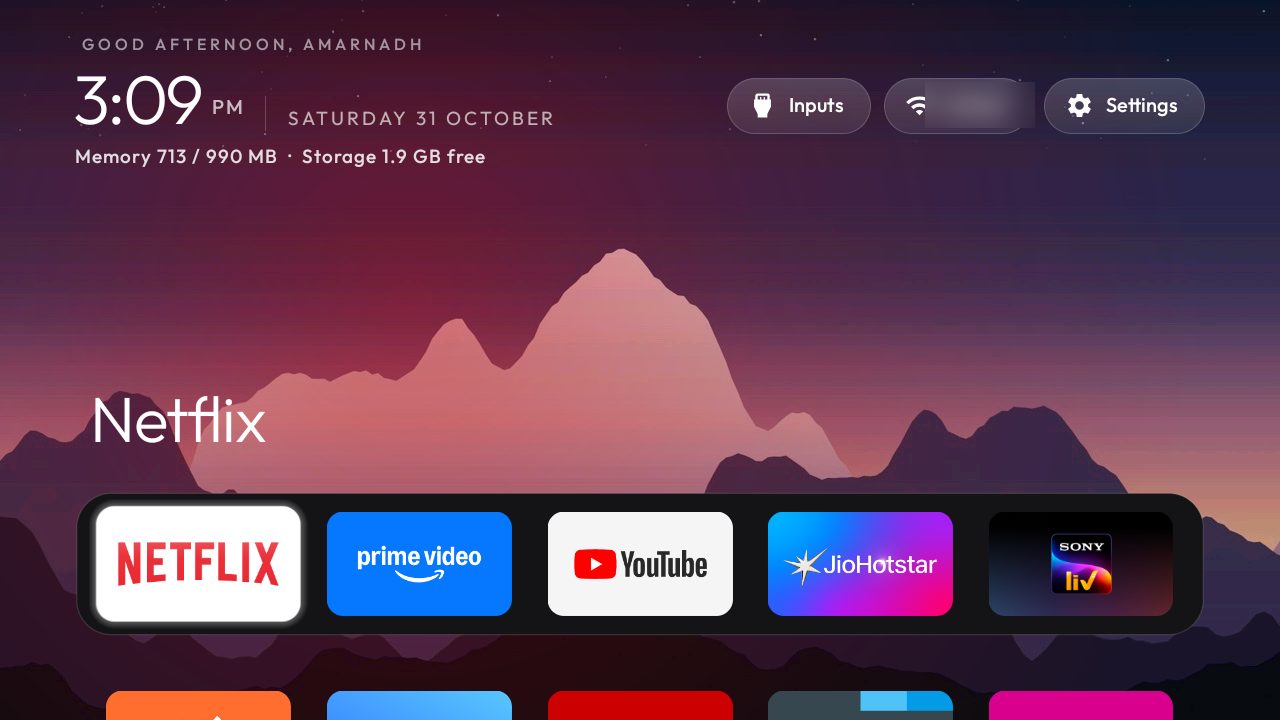 BeforeAfter
Drag across the screen to compare.
Prefer to read offline? Download the PDF guide (1 MB).
Check first
Will it work on my TV?
Pick your TV's brand.
Most smart TVs sold in India run Android TV or Google TV, and those work.
Yes for Android TV and Google TV sets: Xiaomi, OnePlus, TCL, Sony, Hisense, Vu, Acer, iFFALCON and more. No for Samsung (Tizen), LG (webOS) and Roku TV. Not sure? Open Settings › Device Preferences › About: if you see "Android TV OS", it works.
The new Home screen
Take a look around
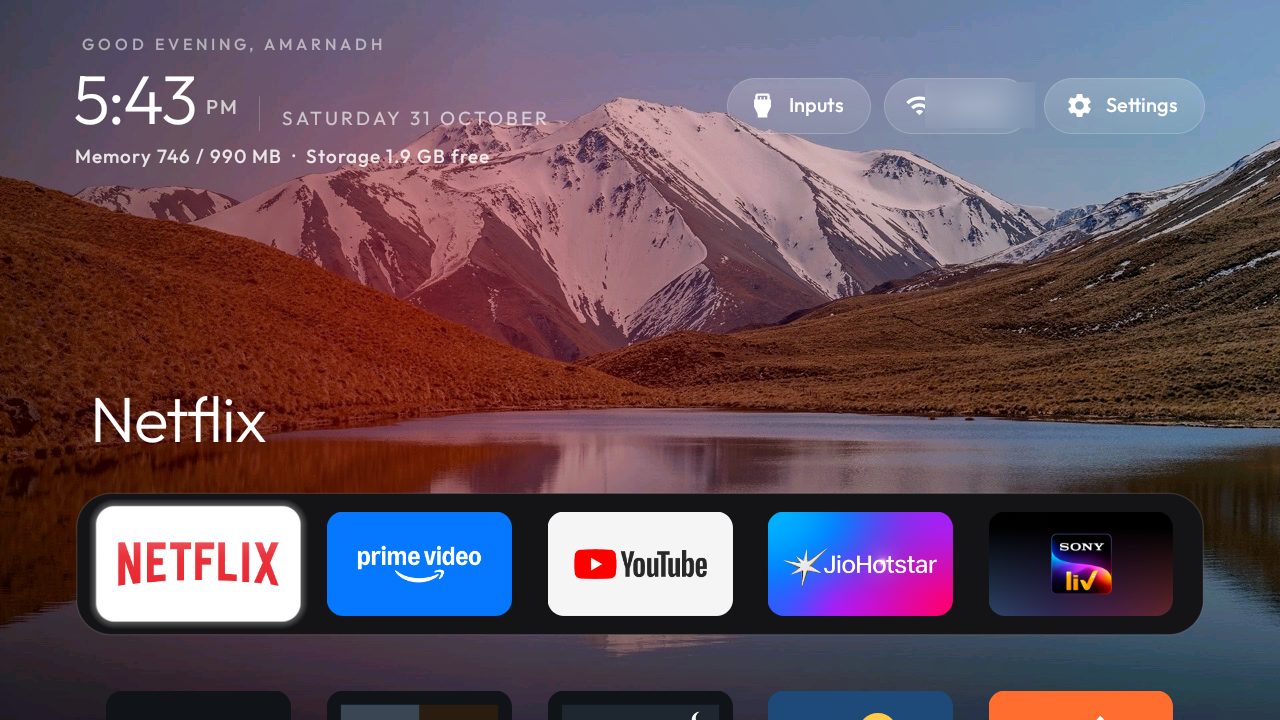
Home. A clock, a greeting and your five favourite apps in one row. No ads, no autoplay, no rows of shows you didn't ask for.
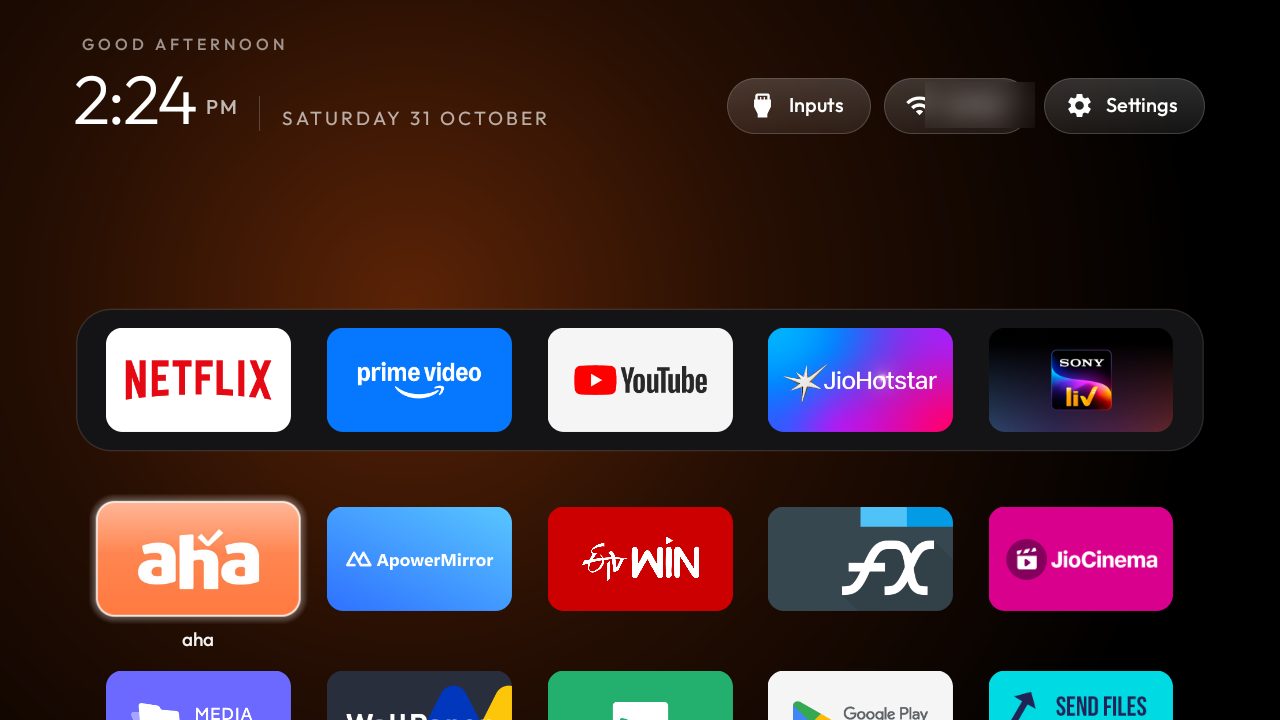
All apps. Press down once and every app you have is in one tidy grid.
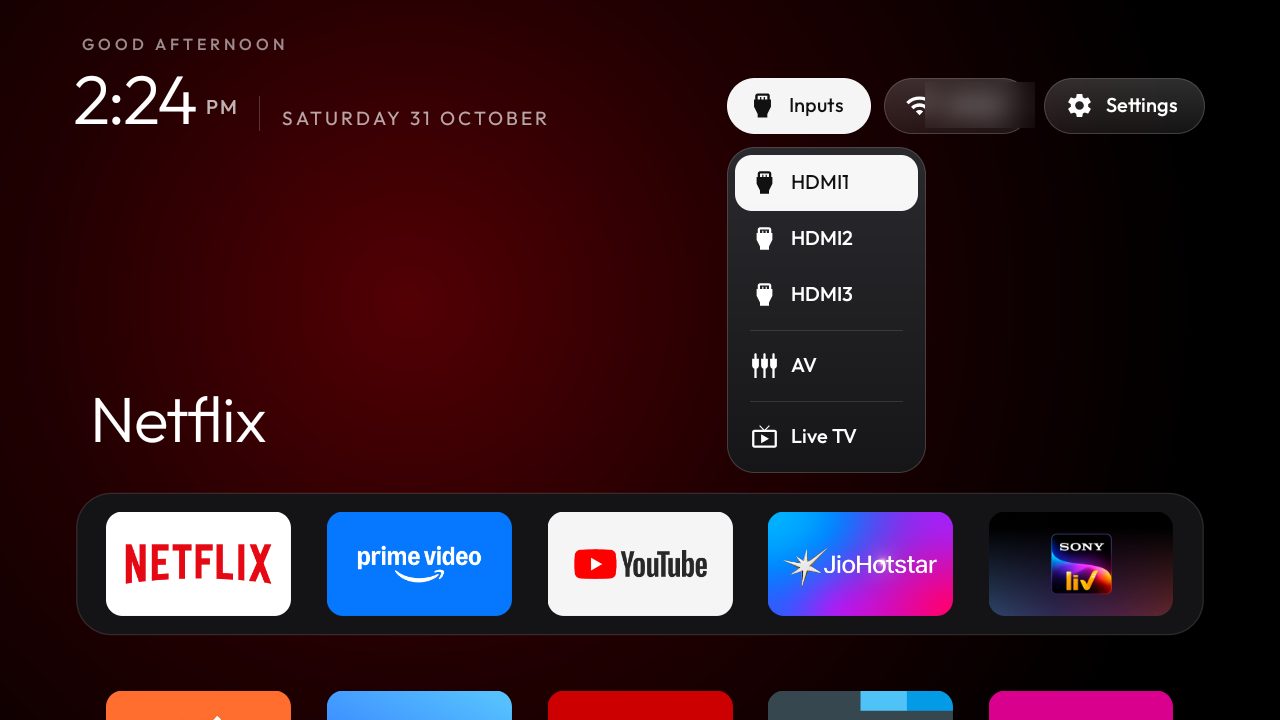
HDMI inputs. Set-top box, console or laptop: the Inputs button opens HDMI 1–3, AV and Live TV in one press.
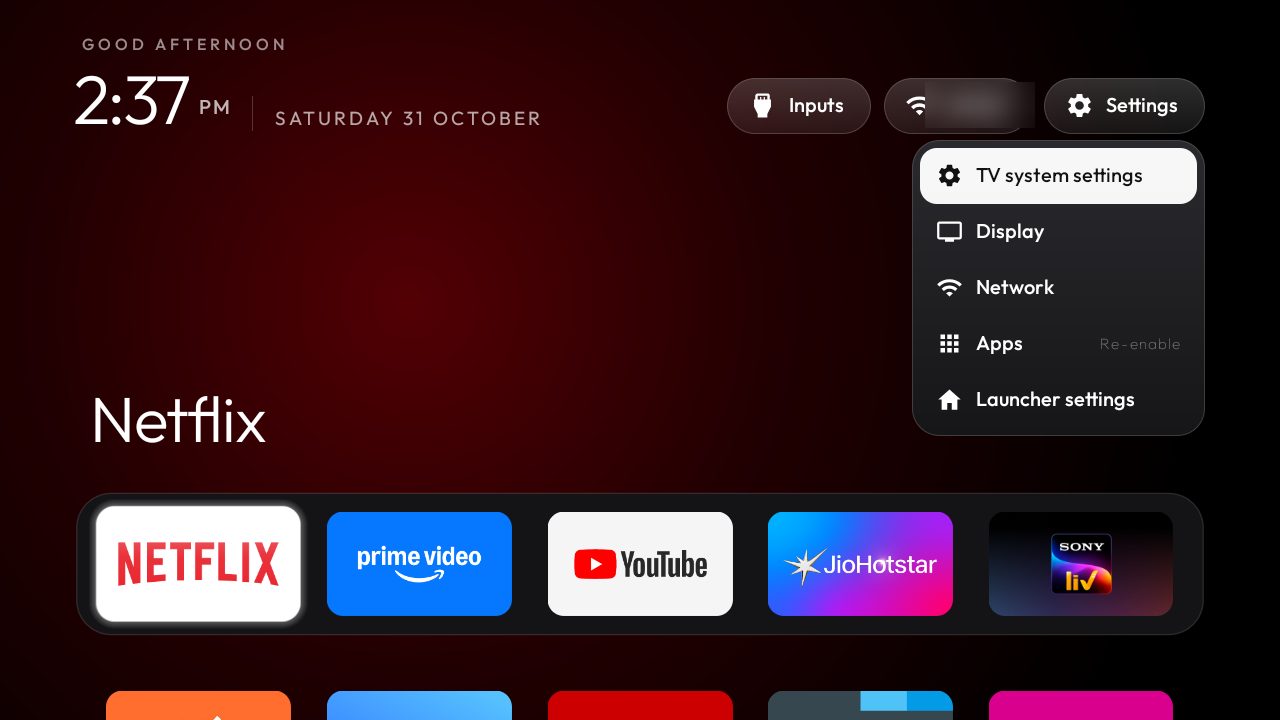
Quick settings. The ☰ button on the remote opens Display, Network, Apps and TV settings from Home.
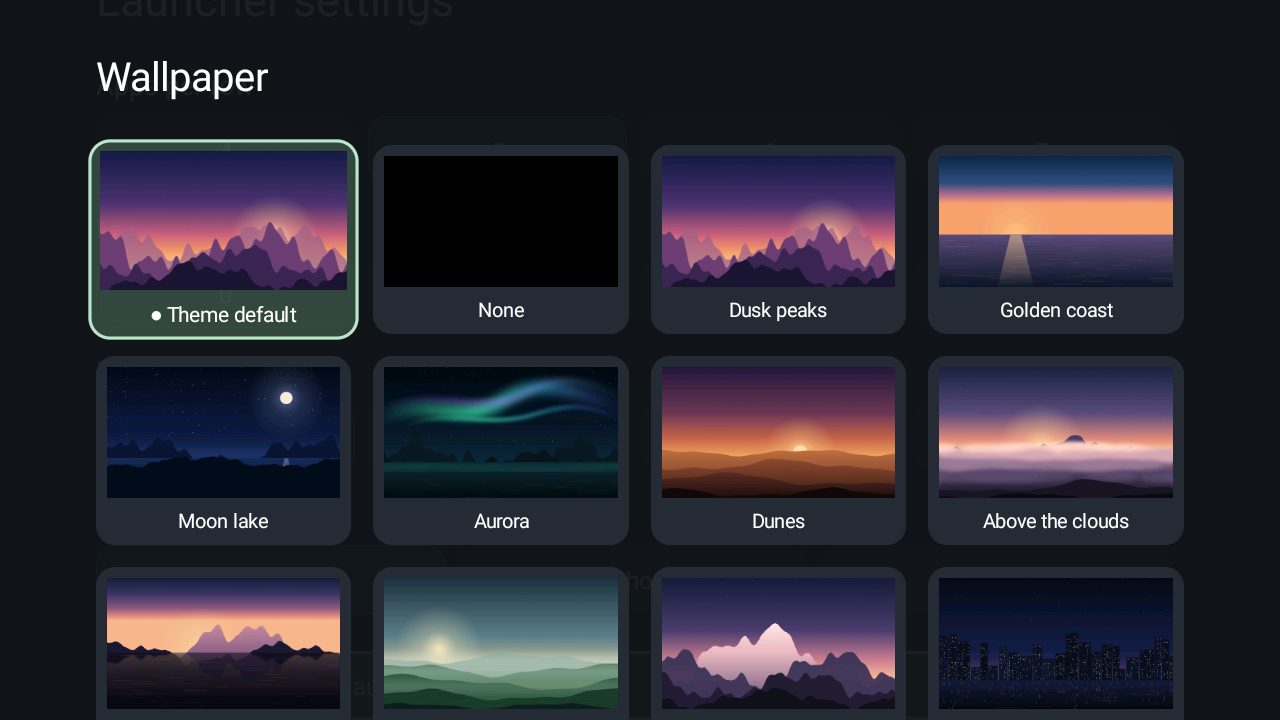
Wallpapers. Pick one from the cards, use your own photos, or let them change every hour.
What changes
Off goes the clutter. Your apps stay.
Switched off
- PatchWall and sponsored rowsthe ad-filled stock Home
- Xiaomi analytics and tracking
- Partner auto-installsapps that install themselves
- Preloaded apps you never openMi Music, Play Movies, Mi Gallery and the like
- Google Assistant, only if you choose
Kept, working as before
- Netflix, Prime Video, YouTube, JioHotstar, SonyLIV
- Live TV, HDMI and AV inputs
- Chromecast and screen mirroring
- Remote, Bluetooth and the on-screen keyboard
- Play Store and TV software updates
Peace of mind
Is it safe?
Nothing deleted
System apps are only switched off. Any of them can be switched back on from TV Settings › Apps.
No rooting or flashing
It uses Android's own developer settings. The TV's software isn't modified.
One-step undo
A single command puts every app and the old Home screen back.
Locked again after
The developer access used for the clean-up is switched off when you finish.
My session with Claude
What Claude did on my TV
I started with one message to Claude Code. Everything after that, Claude did step by step, asking me before each change.
What I typed first
Clean up my Mi TV with the cleanyour.tv guide (PROMPT.md). The TV's IP address is 192.168.1.50.
Checked the TV and saved a backup
Read the model and Android version, then saved the app list and settings before touching anything.
Asked me what to keep
A checklist of streaming apps, Google Assistant and Chromecast. I ticked what my family uses.
Switched off 27 apps in 4 small batches
Tracking, ad content, Xiaomi services, then preloaded apps, with a screenshot of the TV after each batch.
Built and installed the new Home screen
My five streaming apps in the dock, my name in the greeting and a ☰ quick-settings panel.
Freed up storage
Cleared app caches and removed duplicate apps I never used: 441 MB free became 1.8 GB.
Added the extras I asked for
Wallpapers (including my own photos), a weather card, one-press Bluetooth headphones and a night brightness mode.
Locked the TV again
Switched debugging off and checked that the TV no longer accepts connections.
About 45 minutes
How to do it
You need the TV remote, a laptop (Mac or Windows) on the same Wi-Fi, and Claude Code, the version of Claude that runs on your laptop. The guide Claude follows is free and open source at cleanyour.tv. Tick the steps as you go.
-
On the TV open Settings › Device Preferences › About, select Build and press OK 7 times until it says you're a developer.
-
Go back to Device Preferences › Developer options and switch on USB debugging.
-
Find it in Settings › Network & Internet under your Wi-Fi. It looks like 192.168.1.50.
-
Install it from claude.com/claude-code and sign in. It needs a Claude plan that includes Claude Code.
-
Download the free guide from cleanyour.tv, open Claude Code in its folder, paste the guide's prompt and add your TV's IP address.
-
Accept Allow USB debugging? on the TV. Claude then asks which apps you use; anything you tick is kept.
-
Claude installs the new Home screen, checks it with screenshots of the TV and switches debugging off at the end.
Your ticks are saved in this browser only.
Questions
Good to know
Will Netflix, Hotstar and YouTube still work?
Yes. Streaming apps are kept unless you choose to switch one off.
Can I go back to the old Home screen?
Yes. One command switches every app and the stock Home screen back on. Without a laptop, you can turn apps back on one by one in TV Settings › Apps.
What happens after a TV software update?
The updater is left on, so you still get updates. After a big one, check that the new Home screen is still your default.
Does the voice button still work?
Only if you keep Google Assistant on. The checklist asks you.
Does it cost anything?
The guide and the new Home screen are free and open source. Claude Code needs a paid Claude plan.
Do I need to know coding?
No. I only typed plain requests to Claude and answered its questions. Claude ran every command and showed me screenshots of the TV after each change.
My TV isn't Android. Can I still remove the ads?
Samsung, LG and Roku TVs can't use this guide, but cleanyour.tv/not-android shows how to turn off their tracking with the remote.